Invite a guest without an account
Give one person outside your team a link and a passcode to one space.
A guest pass lets one named person into one space without a Persera account: a client, a contractor, someone who only needs to look or approve.
Create a pass
- Open Share in the space and find Guests.
- Choose Add a guest and enter their name. Organisation and email are optional.
- Pick what they can do and how long the pass lasts, then Create pass.
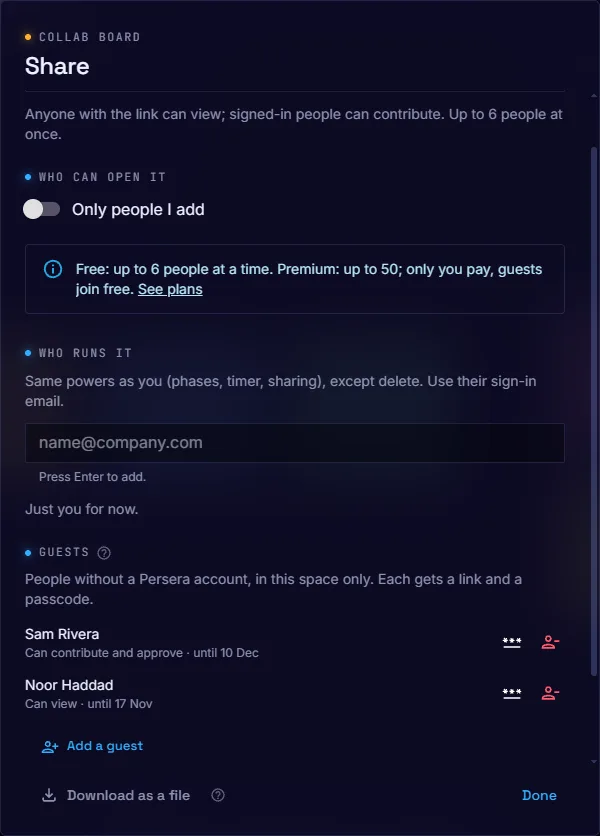
You get a link and a 6-digit passcode. Send them to the guest yourself, ideally in two separate messages. Only a space's admins can create passes, and a space takes up to 50 open passes.
What a guest can do
- Can view: see the space, nothing more.
- Can contribute: add and edit like anyone you share the space with, including pictures.
- Can contribute and approve: also answer a sign-off request.
A guest shows in the space as "Name (guest · Organisation)" and counts toward its people limit. They see only that space: no Home, no new spaces, no downloads.
A guest who happens to be signed in to a Persera account doesn't need to sign out. If the space doesn't let their account in, the pass does, and they take part as the guest. If their account is already let in (it's on the space's list, say), they stay themselves.
The passcode
The passcode is shown once, when the pass is created, and we keep no copy we could show again. The link alone opens nothing, so a link left in a browser's history isn't a way in.
If the guest loses it, choose New passcode beside their name: the old one stops working. Five wrong passcodes in a row lock the pass; a new passcode unlocks it.
End a pass
A pass ends when its time is up, or when you choose Revoke. The guest is disconnected at once. We then forget their name, organisation and email; what they added stays, shown as "Former guest".
Spaces in a team
A team takes guests only when its admins turn on Allow guests on the team's Members page. Turning it off disconnects every guest in the team's spaces; their passes work again if it's turned back on.
Related
You were invited as a guestOpen a space with your link and passcode, and what you can do there.Ask for sign-offAsk named people to approve a board, a frame or a goal, and see if it changes afterwards.Updated Nov 20, 2026
Still stuck? Email cosparks-help@persera.ca.