You were invited as a guest
Open a space with your link and passcode, and what you can do there.
Someone gave you a guest pass: a link and a 6-digit passcode to one CoSparks space. You don't need an account.
Open the space
- Open the link. It shows who the pass is for, and nothing of the space yet.
- Type the passcode and choose Open the space.
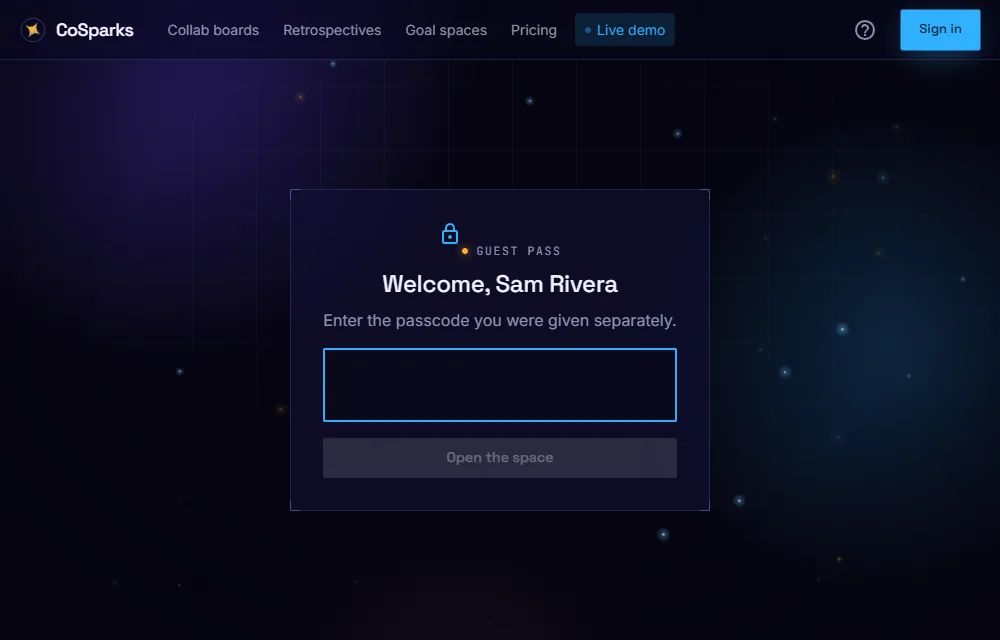
Your browser then remembers the pass, so the link opens the space directly next time on that device. On another device or browser, you'll be asked for the passcode again.
If the passcode doesn't work
Five wrong passcodes in a row lock the pass. Ask the person who invited you for a new passcode: they can make one in a few seconds, and it unlocks the pass.
What you can do
It depends on the pass: view only, contribute, or contribute and approve. You show in the space under the name on your pass, marked as a guest. You see only this space.
If you were asked to approve something, see Answer a sign-off request.
When your pass ends
A pass ends on its last day, or earlier if the person who invited you revokes it. We then forget your name, organisation and email. What you added stays in the space, shown as "Former guest".
Delete your data
Choose Delete my data in the bar that says who you're in as. Everything you added stays but no longer carries your name, and your pass ends at once. This can't be undone.
Related
Answer a sign-off requestApprove or ask for changes, and what "Changed since approved" means.Updated Nov 10, 2026
Still stuck? Email cosparks-help@persera.ca.