Share a space and choose who can open it
Copy the link, limit a space to the people you list, add co-facilitators, or reset the link.
Every space has one link. Open Share in the space to copy it and to decide who it works for. The people who run a space can change these settings; everyone else can copy the link.
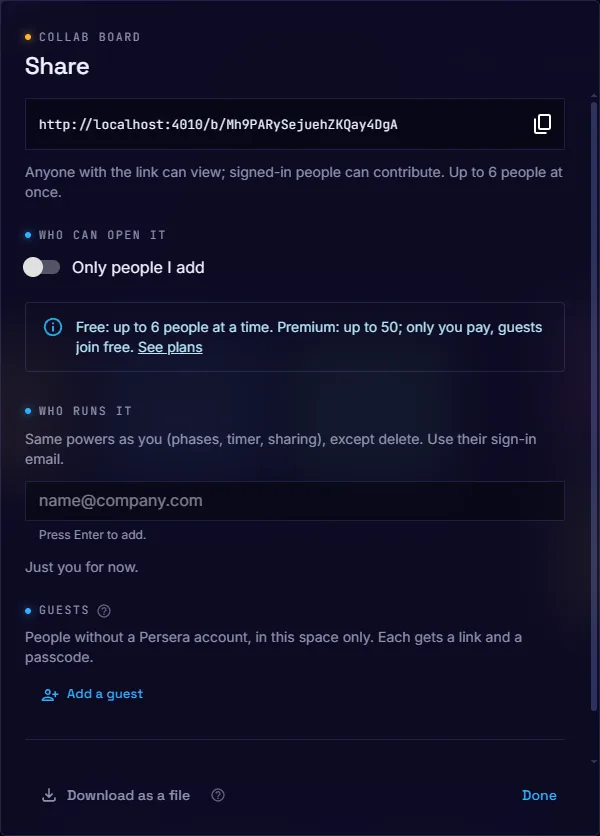
Who can open it
Under Who can open it there is one switch, Only people I add:
- On: only the people you list can open the space, and they must be signed in with the email you listed. Type an email and press Enter to add it. This is what a new space starts with, unless you chose otherwise when creating it.
- Off: anyone who has the link can view. People who are signed in can contribute; people who aren't can only watch.
Treat a link to an open space like a key: whoever has it gets in.
What people can do
- The owner and co-facilitators run the space: they can do everything below, and also run votes, the timer and polls, conclude or archive the space, and change who can open it.
- Signed-in people who can open the space contribute: add and edit, vote and comment.
- People who aren't signed in only view.
Co-facilitators
Under Who runs it, the owner can add up to 10 co-facilitators by their sign-in email. They have the same powers as the owner, except deleting the space and choosing co-facilitators.
Reset the link
Reset link… gives the space a new link. The old one stops working at once, and everyone else who has the space open is disconnected. Use it when a link went somewhere it shouldn't have. Then send the new link to the people who should have it.
How many people at once
A free space holds 6 people at the same time, counting everyone who has it open, viewers included. A Premium space holds 50. The owner always gets in, even when the space is full.
Someone who arrives at a full space sees "This space is full right now" and gets in by themselves when someone leaves. See Plans and people limits.
In a team
A space made in a team only opens for that team's members, signed in. There the choice is between every member and the members you pick. See Teams.
People without an account
To let in one person without a Persera account, invite them as a guest: they get their own link and a passcode.
When a link doesn't open
- "Sign in to open this", or being asked to have your email added: the space is limited to listed people. Ask its owner to add the email you sign in with.
- "This link was reset": ask the owner for the new one.
- "This space was deleted": its owner deleted it.
Related
Invite a guest without an accountGive one person outside your team a link and a passcode to one space.Plans and people limitsWhat Free and Premium give you, the free trial, and what happens when a plan ends.TeamsOne home for a team's spaces, open to its members only, where facilitators' spaces hold up to 50 people at once.Updated Nov 10, 2026
Still stuck? Email cosparks-help@persera.ca.