Run a retro
Set up the columns, take the team through contributing, voting and discussing, and leave with action items.
A retrospective collects what a team thinks as cards in columns, lets everyone vote, and ends in action items. The person who created it is its facilitator, along with any co-facilitators.
Set it up
A new retro opens on Set up your retro. People who join meanwhile see that the facilitator is getting ready.
- Pick a format: Classic, Start · Stop · Continue, Mad · Sad · Glad, 4 Ls, Sailboat or KALM. Rename, add or remove columns as you like.
- Check Options for each phase (see below), whether to Limit votes, and whether to Allow down votes.
- Choose Start retro. Cards and votes open for everyone.
The three phases
The bar at the top shows where the retro is: Contribute, Vote, Discuss. The facilitator moves on with Start voting and Start discussion, and can go back by choosing an earlier step.
A phase doesn't stop anyone from doing anything: cards, votes and comments work throughout. What changes is what people see.
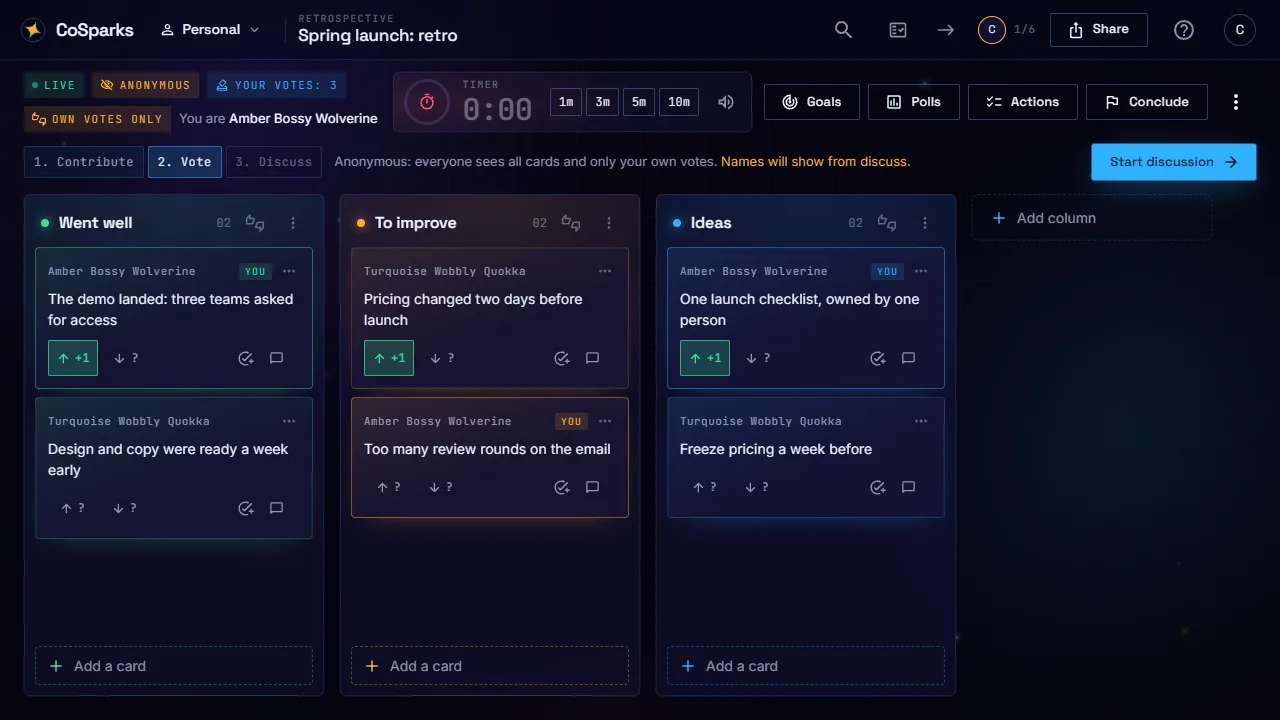
What each phase shows
Each phase has three switches:
- Anonymous: made-up names replace real ones on cards and comments.
- Only see my own cards: everyone else's cards lie face down until a later phase shows them. This holds for the facilitator too.
- Only see my own votes: the counts stay hidden, so early votes don't sway later ones.
A new retro starts like this:
- Contribute: anonymous, you see only your own cards and votes.
- Vote: anonymous, all cards show, you see only your own votes.
- Discuss: everything shows, names included.
The facilitator changes these in setup, or later under Facilitation options in the retro's menu.
Before a step shows names on what people already wrote, the facilitator is asked to confirm, and the bar tells everyone ahead of time.
Cards, votes and comments
- Add a card at the foot of a column.
- Vote a card up. With a vote limit, each vote uses one; taking a vote back frees it.
- Votes only count up unless the facilitator turns on Allow down votes; then a card can be voted down too, and a down vote uses one of your votes like an up vote. Turning it off again takes back the down votes already cast.
- Nobody sees who voted for what: cards only ever show counts.
- Open a card's comments to discuss it.
- Drag a card onto another to group them.
- Sort a column by votes for yourself; it doesn't change the order for others.
Action items
Turn a card into a task with Make action item on the card, or add one in Action items.
An action item can have owners and a due date. Owners can be people in the retro, or anyone by email, also people who weren't there. Each owner finds their items under My actions on Home.
Copy or email the list from the same panel.
Timer, polls and goals
- The facilitator can run a timer for everyone. It resets when the phase changes.
- Polls asks everyone one question: see Run a poll or a check-in.
- Goals links a goal space, so action items can say which goal they support.
Conclude
Conclude retro in the retro's menu locks cards, votes and comments. Every card and vote then shows. Action items can still be ticked off, dated and linked afterwards.
Duplicate makes a new retro with the same columns, phase options and vote limit, and none of the cards.
Change the columns later
Until the retro is concluded, the facilitator can add a column with Add column, and rename or remove one from the column's menu. Removing a column that has cards asks which column they should move to.
Related
Run a poll or a check-inAsk everyone one question on a board or in a retro, and reveal the answers when you're ready.Keep goals in a goal spaceWrite goals with measurable key results, put them under the bigger goals they support, and keep progress up to date.Share a space and choose who can open itCopy the link, limit a space to the people you list, add co-facilitators, or reset the link.Updated Nov 19, 2026
Still stuck? Email cosparks-help@persera.ca.