Draw on a board
Sketch, circle and underline with the pen, and rub strokes out with the eraser.
Draw
Choose Pen in the tool dock (or press P) and drag on the board. Each drag is one stroke. On a touch screen one finger draws and two fingers still move and zoom the board.
The row above the dock picks the colour and one of three thicknesses for the next stroke. The pen stays picked until you choose another tool; V goes back to Select.
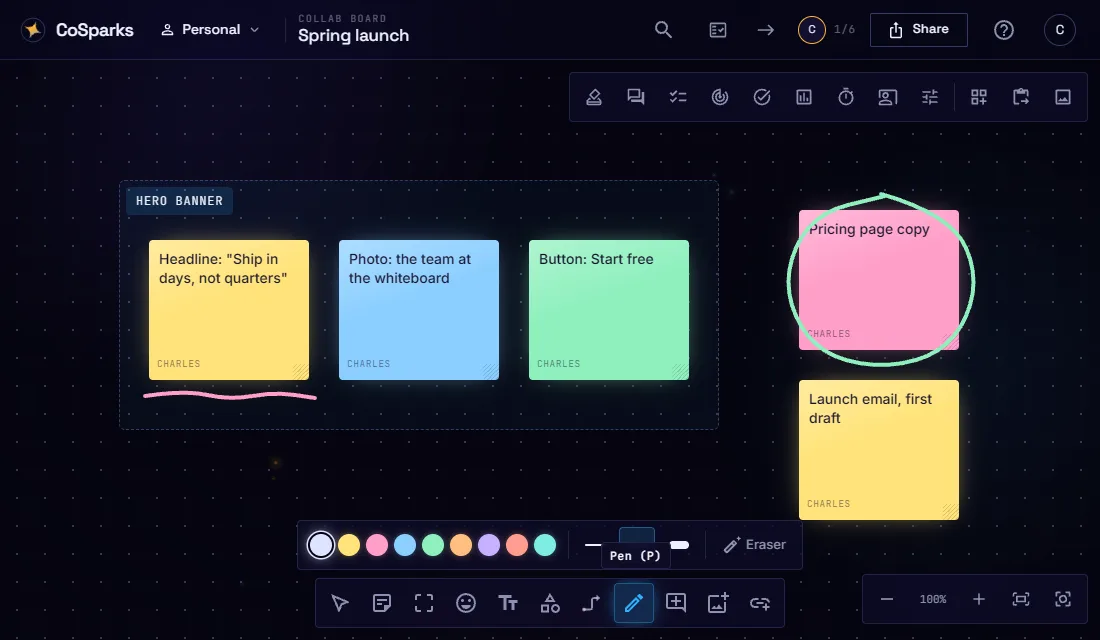
Change or move a stroke
With Select, click a stroke on its line to select it. Then drag it, change its colour or thickness in the row above the dock, duplicate it or delete it. A stroke's line itself can't be reshaped: draw it again.
Clicking next to a stroke, inside the box around it, reaches what's underneath.
Rub out
With the pen picked, choose Eraser and drag across strokes: each one you touch fades, and they go when you let go. The eraser only removes pen strokes, never stickies or anything else. Undo brings back what the last drag removed.
What strokes are and aren't
- Everyone sees a stroke when it's finished, not while it's being drawn.
- Strokes sit above stickies, shapes and pictures, and below text and stamps.
- Connectors can't attach to a stroke, and strokes take no votes.
- Strokes have no words, so search and the text export skip them. They are in pictures, PDFs and space files.
Related
Put a link on a boardAdd a web address as a card that opens in a new tab.Save a board as a picture or a PDFA PNG of a selection, a frame or the whole board, or a PDF with one frame per page.Updated Nov 10, 2026
Still stuck? Email cosparks-help@persera.ca.